CEMLink 6 Excel Add-In Released

VIM Technologies has released our latest version of the CEMLink 6 Excel Add-In – a CEMLink 6 tool designed to reduce the challenges associated with assembling and populating CEDRI reporting templates, state-specific reporting, and corporate fleet-wide data aggregation spreadsheets. This latest CEMLink 6 Excel Add-In is now available in the latest release (6.2.100), released on March 1, 2021.

Populate Excel Reports with the Click of a Mouse

The CEMLink 6 Excel Add-In will allow users to retrieve their compliance data directly, reliably, safely, and repeatedly from the CEMLink 6 server and use it to populate Excel reports with the click of a mouse. Users can manage and maintain connections to multiple servers, making it easy to run reports across an entire fleet.

Once licensed, users will be prompted to download the Excel Add-In from the DAHS server and can load the CEMLink6 plugin directly into Microsoft Excel. There are no limits on the number of workstations, users, or spreadsheets that can interface with a CEMLink6 DAS.

The first step in retrieving data is to configure and manage each of the CEMLink6 server connections. Users have the ability to collect and combine data from one or more servers across their fleet, all being tied into a single spreadsheet.

The next step involves the configuration of lists. “Lists” define the type of data that is being retrieved and contain details on the location where data is to be placed in each spreadsheet. Typically these steps are only done once, unless the reporting requirement or CEDRI template changes.

The final step entails running the report by using the “Get Data” feature and passing through a date range. With a few clicks of a mouse, it populates the Excel spreadsheet.

How to Get the CEMLink 6 Excel Add-In

To gain access to this feature in CEMLink 6, users will need to purchase a license. Complete configuration of your report(s) by VIM is also available, but not required. Please send an e-mail to support@vimtechnologies.com with the following information:

  • Desired delivery date
  • Number of DAS(s) the Excel add-in will communicate with
  • Type(s) of data needed (raw, calculated, other)
  • How are you planning to use the Excel Add-in? (provide sample files)
    • Ad-hoc query
    • Custom dashboards
    • Title V / Emission inventory / CEDRI / Other Sample Reports

Our Support Team will review your requirements and issue a proposal for the license and any configuration needed.


Want to know more about CEMLink6 Excel Add-In and CEDRI reporting requirements? Read VIM’s article in December’s World Cement Magazine

CEMLink6 Excel Add-In: CEDRI Reports Are Just a Few Clicks Away

VIM Technologies is in high gear and getting ready to release the CEMLink6 Excel Add-In – a CEMLink6 tool designed to reduce the challenges associated with assembling and populating CEDRI reporting.

Over the last four years, PC MACT affected facility managers have witnessed the EPA change its demand regarding CEDRI reporting formats and requirements numerous times. The most recent change took effect on September 24, 2020, discontinuing the web format and replacing it with a new, consolidated, Excel spreadsheet template. The change effectively mandates all PC MACT sources to use the latest Excel template in the upcoming reporting period.
Read more »

What’s New In CEMLink6 — August 2026

We have plenty of CEMLink6 news to share!

Since our last “What’s New”, the VIM Technologies development team has been busy delivering new features, enhancements, and improvements designed to make CEMLink6 more powerful, efficient, and easier to use.

The continued evolution of CEMLink6 is shaped in large part by the people who use it every day. Feedback from our customers, Support team, and CEMLink Steering Committee helps us identify real-world challenges and prioritize improvements that provide meaningful value. This collaboration continues to play an important role in keeping CEMLink6 aligned with the changing needs of the emissions monitoring industry.

During this period, our development efforts have focused on a wide range of areas—from new tools and user-facing features to improvements in reporting, data management, system performance, and overall usability. Some of these changes introduce entirely new capabilities, while others enhance existing functionality or improve the reliability and efficiency of the system behind the scenes.

For this update, we’ve selected the most significant CEMLink6 features and enhancements released over approximately the past 16 months. While this isn’t an exhaustive list of everything that has changed, it highlights the improvements we believe will have the greatest impact on our customers.

If you are not currently running the latest version of CEMLink6, we encourage you to contact our Support team. We can review your current installation, discuss the features and improvements available to you, and help schedule an update. The best way to reach us is at support@vimtechnologies.com or by calling 1-866-484-6435 for immediate assistance.

With that, let’s take a look at some of the most important new features and improvements in CEMLink6!

Key Enhancements

Regulatory Reporting and Compliance Enhancements

Recent updates continue to expand CEMLink6’s reporting and compliance capabilities, helping users meet evolving regulatory requirements more efficiently.

1. Part 75 EDR Updates - Moved Part 75 EDR Generation

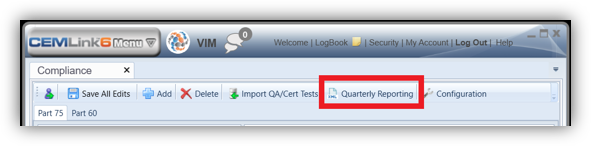
The Quarterly Reporting toolbar button was removed from the Compliance UI.

The Quarterly Reporting button is no longer in the toolbar of the Compliance tool.  The Part 75 EDR is now generated within the Part 75 section of Compliance.

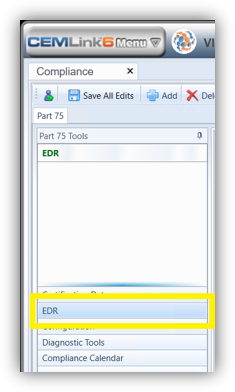
EDR Section is Now in Part 75 tab in Compliance

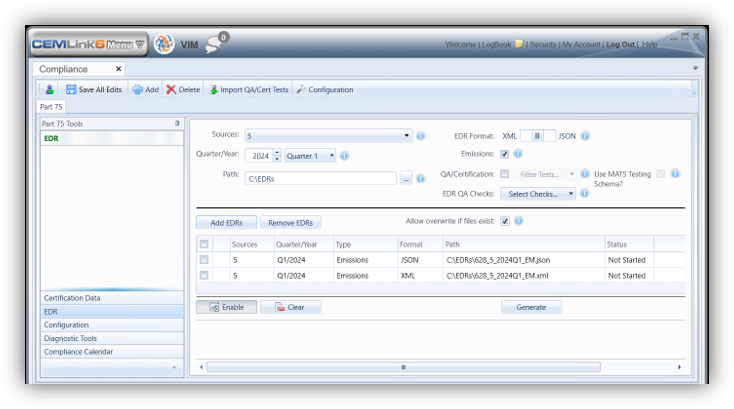
In the Part 75 Tools selection of the Part 75 tab of Compliance, there is a new EDR section.  Use this section to generate a Part 75 EDR.  The EDR generation still functions in the same manner but has moved to this new location.

2. Use MATS Testing Schema for QA/Cert JSON EDR

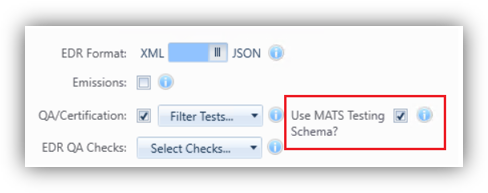
CEMLink6 was updated in this release to include a new option named “Use MATS Testing Schema?” for the QA/Cert JSON EDR. This option is designed to generate a QA/Cert JSON EDR for MATS / ECMPS 2.0 testing. This option is disabled by default. When enabled, certain MATS-only testing elements are included in the EDR output. These MATS-only testing elements include:

Compliance Averages Routine in QA/Cert JSON EDR
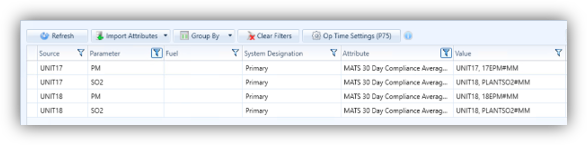
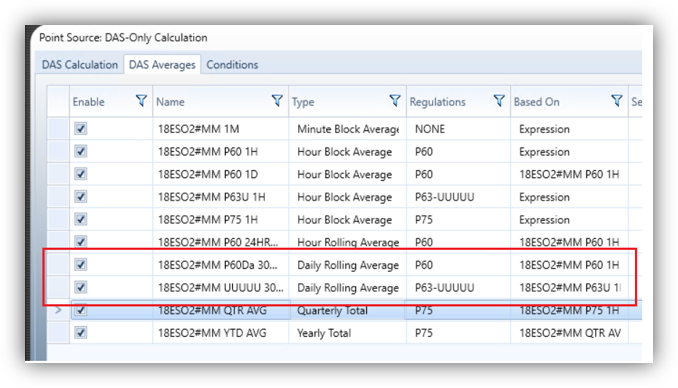
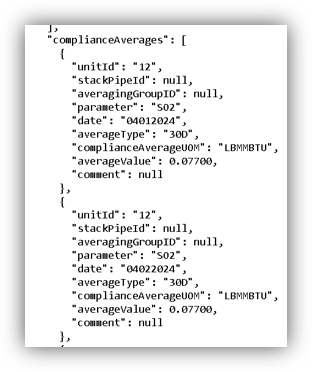
The Compliance Averages routine for the QA/Cert JSON EDR in CEMLink6 was updated in this release to accommodate systems that might be using both P60 and P63-5U 30-day and 90-day rolling averages. In cases where there are multiple averages available, the P63-5U averages are preferred over P60 and used for reporting in the Compliance Averages element.
Latest JSON Schemas

In late 2025, EPA released the final JSON schema files for the Emissions and QA/Certification EDRs. CEMLink6 was updated this release to support the new JSON element names in these schemas.

3. Compliance Calendar

Compliance Calendar is a feature that has been in CEMLink 6 for well over a decade. Despite its age, the 6.2.820 release continues to expand upon the capabilities of this feature.

Without a doubt, there are many areas in Compliance Calendar to highlight. One of its most notable features is the ability to deliver the results of the evaluation through a variety of interfaces. These interfaces include Compliance UI, Overview Dashboards, Excel Add-in, and even a SQL Server database view. This database view provides the ability for “super users” to connect other applications, such as Power BI, directly to the Compliance Calendar results for producing custom reports.

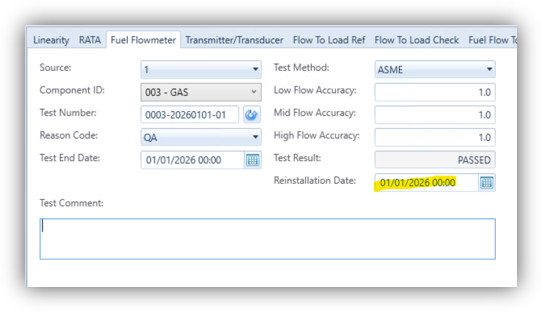
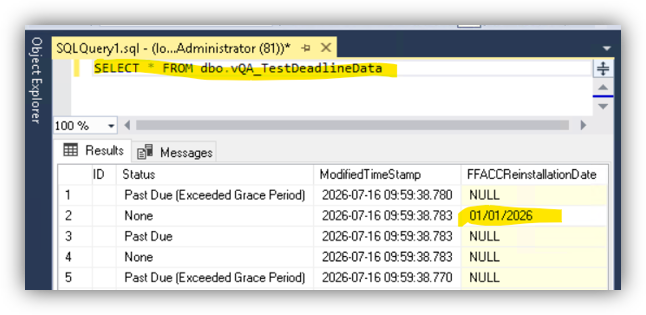
One particular enhancement was made to the Compliance Calendar SQL Server database view by adding the FFACC Reinstallation Date column, making it available in these external applications.

While there are no notable Compliance Calendar UI changes for this request, the addition of this information will help our “super users” with their reporting needs.

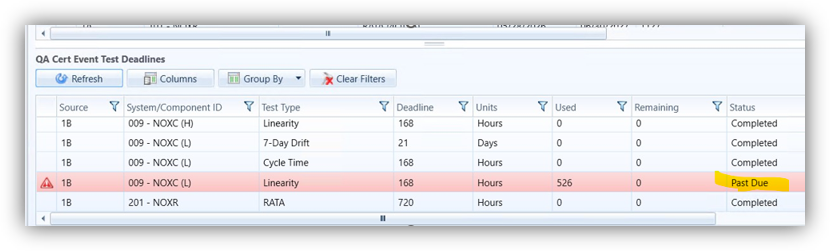
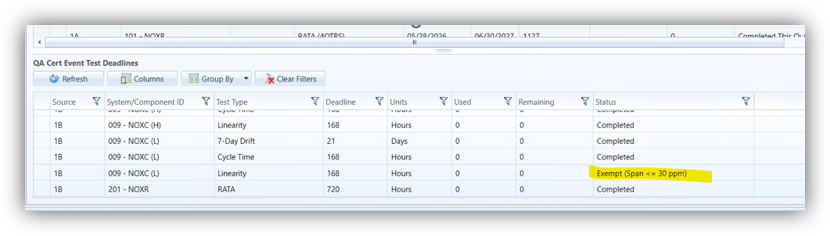
At the same time, the 6.2.820 release of CEMLink 6 also addresses an inconsistency between how Linearities are handled in the QA/Cert Event Deadlines interface and how Compliance Calendar handles them for ongoing QA. This inconsistency is specific to NOx and SO2 Linearities that are exempt when the span is <= 30 ppm. This has always worked for Compliance Calendar, but not for QA/Cert Events. With this release, the results of these evaluations are now marked consistently with Compliance Calendar. They were previously marked as Past Due and are now marked as “Exempt (Span <= 30 ppm)”.

Before
After

Calculation Processing and Activity Visibility

Several recent enhancements focus on improving calculation performance and providing users with better visibility into system processing activities.

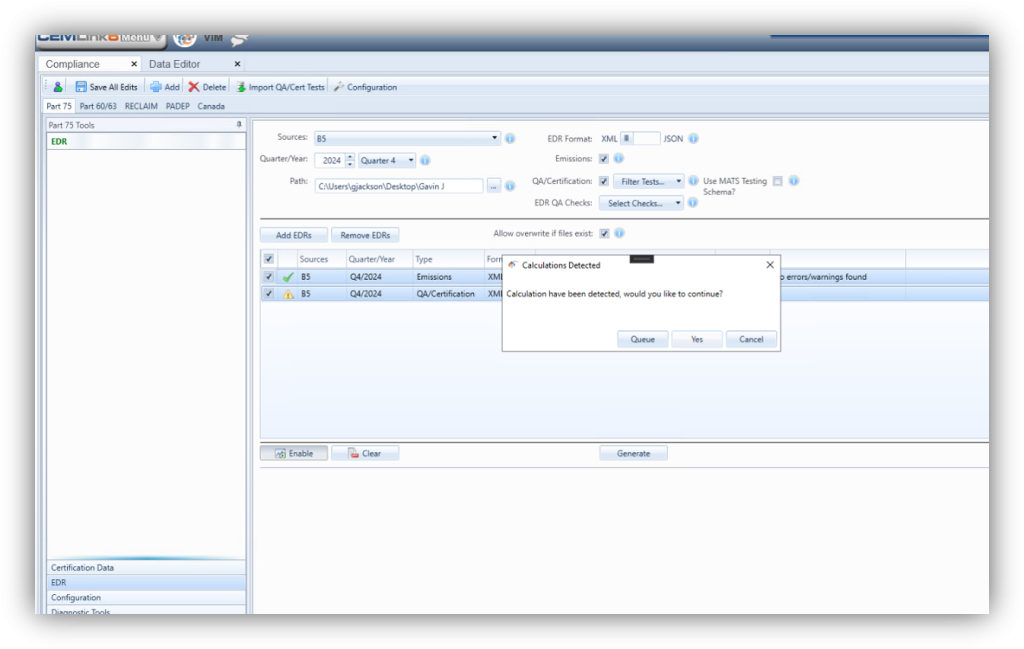
4. Calculation Check in Compliance/EDR

Within EDR tab in Compliance, the system can now check and inform the user when calculations are taking place. Please see an example of the screen below showing when calculations take place in the same source and within the date range.

There are 3 options:

  • Queue—Click to start a timer that will run every minute once clicked. It will check to see if calculations are taking place. If calculations are not taking place, the system will run the EDR only if the Compliance screen is still open.
  • Cancel—Click to cancel and close the dialog.
  • Yes—Click to ignore the calculations and generate the EDR even with calculations detected.

5. Calculation Service Updates – Parallel Calculations

The prior release of CEMLink6 (6.2.575.12) included some significant updates to Calculation Service such as the ability to run calculations in parallel.

Configuration Settings for Parallel Calculations

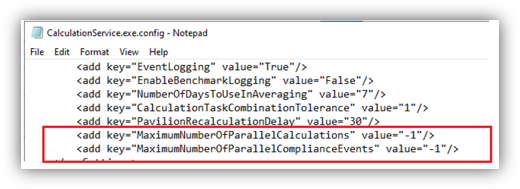
Running calculations in parallel has been a huge improvement for most customers. However, we discovered that customers running shared SQL Server instances hosting multiple CEMLink6 databases might not be able to run calculations for all databases in parallel due to the excessive load on the SQL Server. As a result, we decided to add two settings to optionally throttle back the number of simultaneous calculations and compliance events that can run in parallel at any one time. These two new settings are named MaximumNumberOfParallelCalculations and MaximumNumberOfParallelComplianceEvents, and they were added to the Calculation Service configuration file (locate in the CEMLink Services directory). This way, the sites with a shared SQL Server instance will still get some of the benefits of parallel calculations while still allowing for the workload to be balanced across all databases. These settings are set to -1 by default which allows the parallel calculations to run without any limits. The settings can be set to a specific number of calculations or a percentage of the workload (0.00 – 1.00).

Parallel Calculation Level Caching

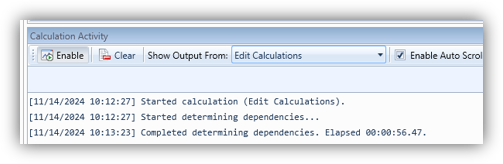
Determining what calculations can run in parallel was something that took time to complete and was resource intensive. Instead of doing this determination “on demand” each time there was a data edit, recalculation, etc., we decided to move this step to happen only once during the Save of the Configuration (or Parsing) and then cache the results. This helped with the speed of the dependency resolution step, which takes place at the beginning of data edits, recalculations, etc.

6. Calculation Activity Task Bar Widget

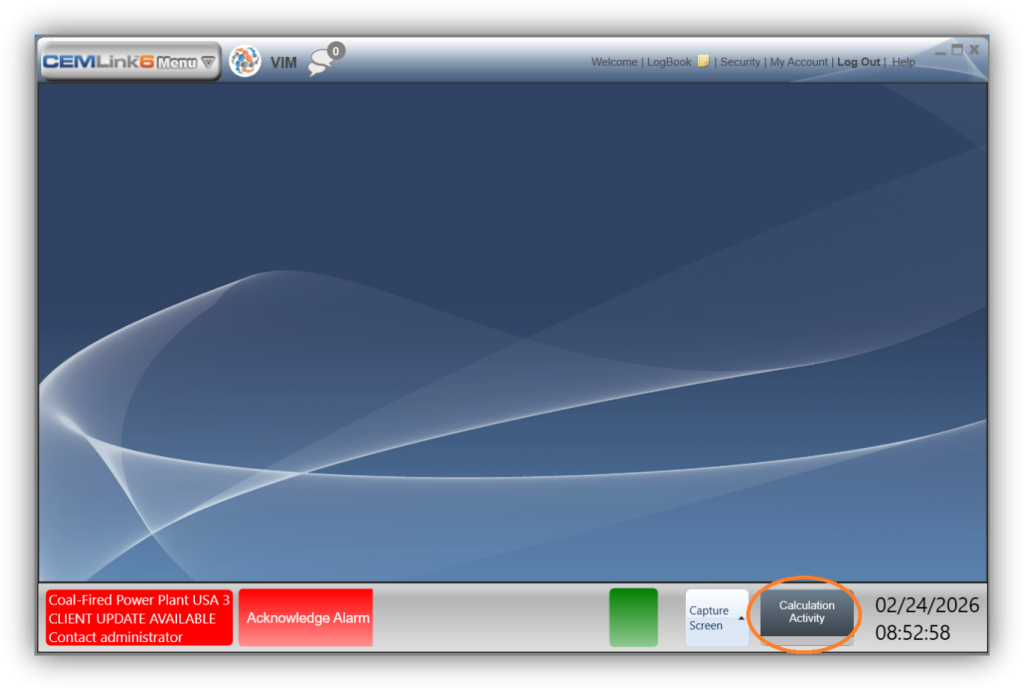
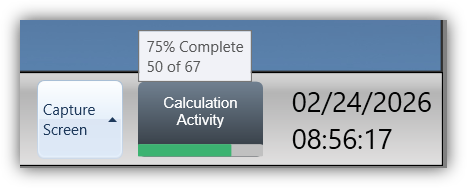
This release introduces a Calculation Activity widget on the bottom task bar of the main CEMLink Client window. This widget provides real-time visibility into background calculation activity performed by the Calculation Service.

Location

The Calculation Activity widget is located in the lower-right corner of the main CEMLink Client window, immediately to the right of the server date and time display.

Functionality

The widget provides a continuous visual indicator of calculation status:

  • Idle State
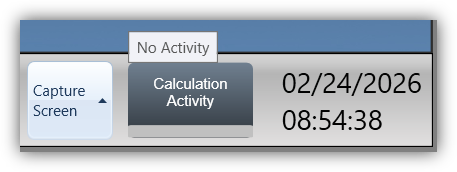
    When no calculations are running, the widget displays Calculation Activity with no progress indicator.
    Hovering over the widget displays a tooltip showing:
    No Activity
  • Active Calculation State
    When calculations are in progress, the widget displays a progress bar indicating current activity.

Hovering over the widget displays detailed progress information, including:

  • Percent complete
  • Number of calculations completed
  • Total number of calculations
  • Current calculation progress

Example tooltip:

75% Complete — 50 of 67 calculations processed

Purpose and Benefits

This feature allows users to:

  • Monitor calculation activity without opening additional screens
  • Confirm that calculations are actively progressing
  • Identify when calculations have completed

Improve overall visibility into system processing status.

7. Percent Completion in Calculation Activity Monitor

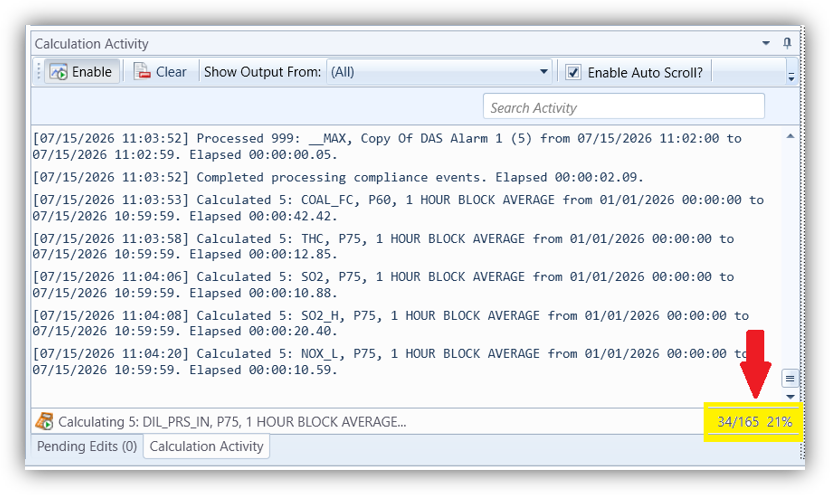
The Data Editor has a Calculation Activity monitor to display scheduled calculations or recalculations as they occur.

The bottom right corner of the Calculation Activity monitor now displays a percentage of completion.

Data Management and Data Quality Enhancements

New data-management tools provide greater flexibility when maintaining databases and managing recalculation activities.

8. Purge 1-minute Data Scheduled Task

Warning!! This task permanently removes data from the database prior to the specified timeframe.  You would have to recalculate to recover unintended purged 1-minute data.

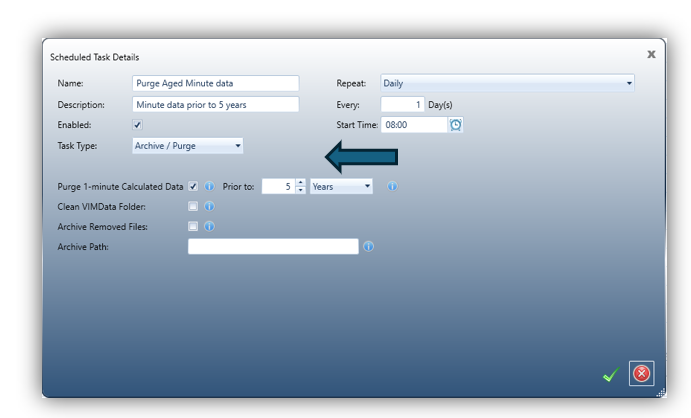
The CEMLink6 Scheduler now includes a feature to create and execute a scheduled task for purging 1-minute calculated data from the system database. This enhancement provides users with more flexibility in managing database growth, potentially improving system performance.

To configure this feature:

  • Select Archive / Purge from the Task Type dropdown.
  • Check the Purge 1-Minute Calculated Data This enables you to set a lookback period to specify a lookback period. Data older than the selected timeframe will be removed.

The default lookback period is set to 5 years, meaning all 1-minute calculated data older than 5 years will be purged. Please note that raw 1-minute data will not be affected.

9. Data Editor Updates

The Data Editor has been updated to add the ability to recalculate date greater than 1 hour and to check for a ready-only flag is present for one or more data points over a date/time range.

Recalculate Data Greater Than 1 hour

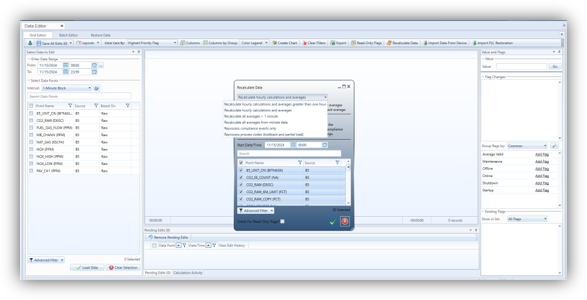
In the latest release of CEMLink6, you can recalculate larger intervals. This change is within the Recalculate Data screen in the Data Editor. Previously, there was no way to focus on recalculating averages and calculations for intervals greater than one hour. For example, this includes daily averages/totals, monthly averages/totals, and quarterly averages/totals. With this change, the recalculate data routine uses the same functionality as before, but now it will cover only intervals greater than one hour. The recalculation details will still be shown and tracked in the Calculation Activity tab.

Check for Read-Only Flags

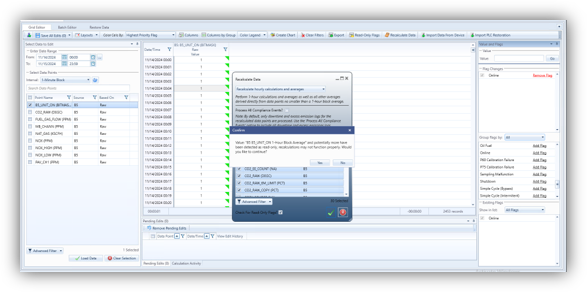
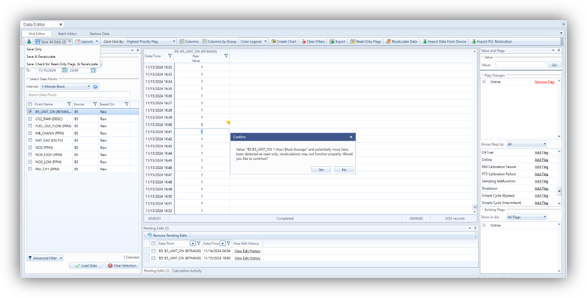
With the latest release of CEMLink6, we have added the ability to detect when a “Read-Only” flag is present for one or more data points over a date/time range. This conveniently happens before data is recalculated. This functionality is available from numerous areas in the Data Editor UI, including:

  • Grid Editor – Recalculate Data Dialog, Check For Read-Only Flags?
  • Grid Editor – Save, Check for Read-Only Flags, & Recalculate
  • Batch Editor – Save, Check for Read-Only Flags, & Recalculate
  • Restore Data – Save, Check for Read-Only Flags, & Recalculate

This addition into these areas will help the user to know exactly when there is a “Read-Only” flag present before attempting to recalculate data. Now, the user will know beforehand and can take any additional steps to remove the “Read-Only” flags if desired.

If ‘Save, Check for Read-Only Flags, & Recalculate’ has been selected within any of the aforementioned areas AND there has been a “Read-Only” flag detected, there will be a prompt displaying the data point and if the user would like to continue. The same functionality will take place within the Recalculate Data Dialog, but only if the ‘Check For Read-Only Flags?’ check box has been checked and a Read-Only Flag has been detected.

(Grid Editor - Recalculate Data Dialog)
(Grid Editor - Save, Check for Read-Only Flags, & Recalculate)

Operations and Maintenance Enhancements

Several enhancements were introduced to simplify maintenance activities and improve operational recordkeeping.

10. LogBook Entry in Maintenance Mode (Calibration Control)

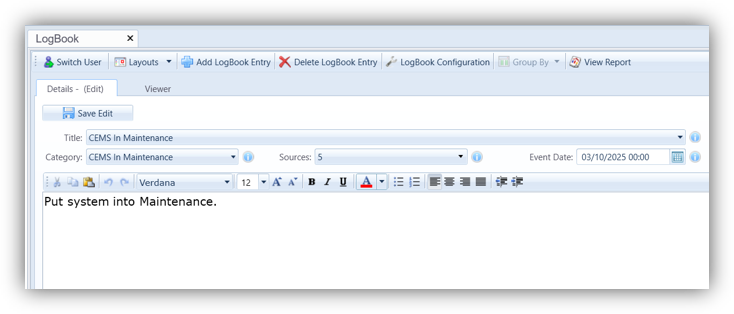
When the DAHS is put into Maintenance mode in Calibration Control, a new LogBook entry is automatically added, if configured to do so.

As part of the upgrade, a new LogBook Title, “CEMS In Maintenance”, has been added to the system.

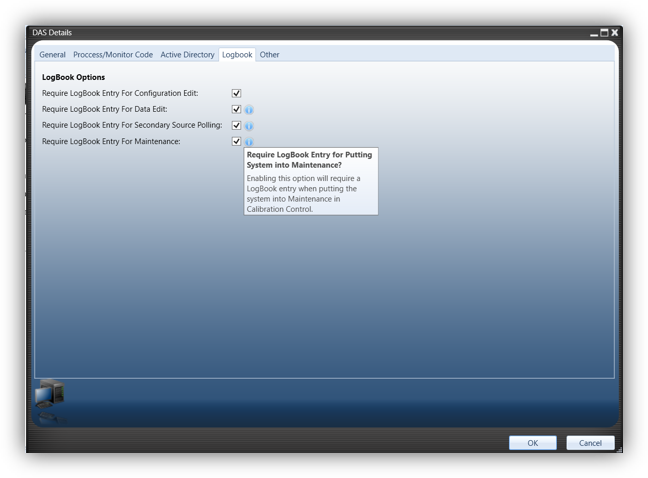
To enable the automatic creation of the maintenance LogBook entry, the option must be turned on in the Configuration UI.

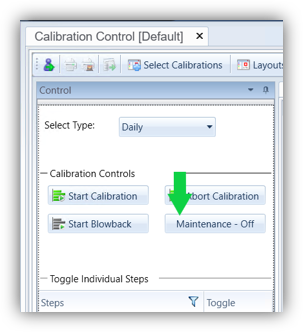
From the Configuration UI, enter the DAS Details dialog.  In the LogBook tab of the DAS Details dialog, click on the “Require LogBook Entry For Maintenance” check box.  Turning on this option will automatically add a CEMS In Maintenance LogBook entry when turning on Maintenance in Calibration Control.

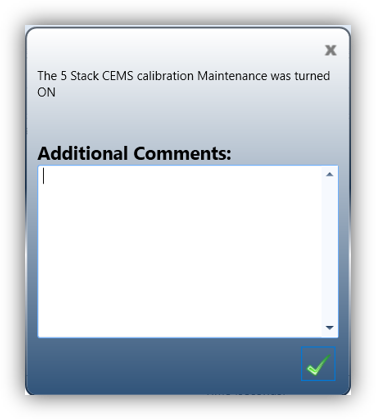
When clicking on the “Maintenance” button In the Calibration Control feature area, a dialog box will appear allowing for additional comments for the LogBook entry.

This LogBook entry is only created when turning Maintenance ON.

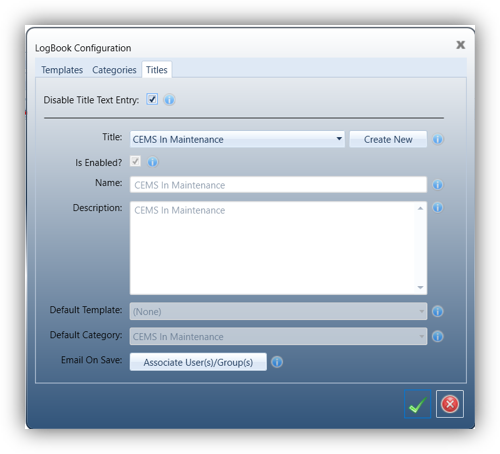
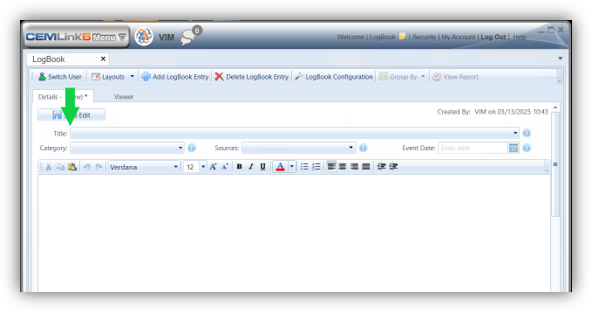
11. Disable the Text Entry for the Title in LogBook

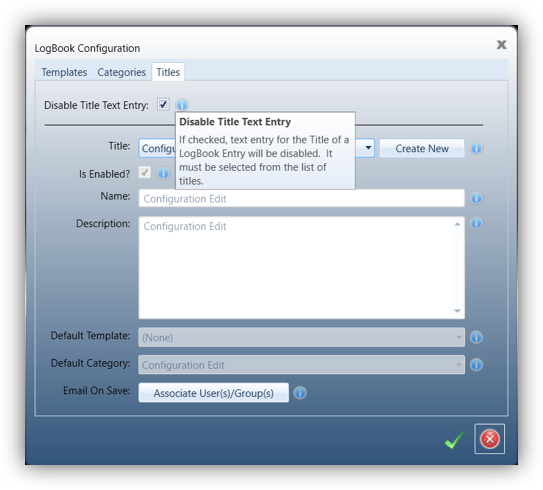
The manual text entry for the Title of a LogBook entry can now be disabled.  If this is disabled, a title must be selected from the list of configured titles.

Disabling the manual text entry for the Title is done inside the LogBook Configuration dialog.

In the Titles tab of the LogBook configuration, click on the Disable Title Text Entry check box.  Checking this box will disable the manual text entry for the title.

Once this option has been enabled, a Title must be selected from the list of configured titles to save the LogBook entry.

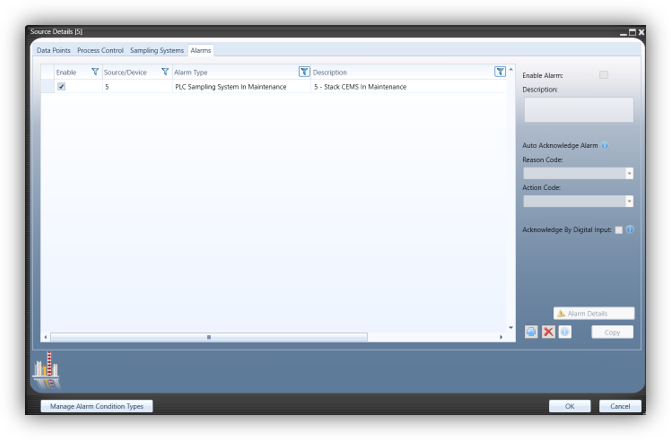
12. PLC Sampling System in Maintenance Alarm Condition

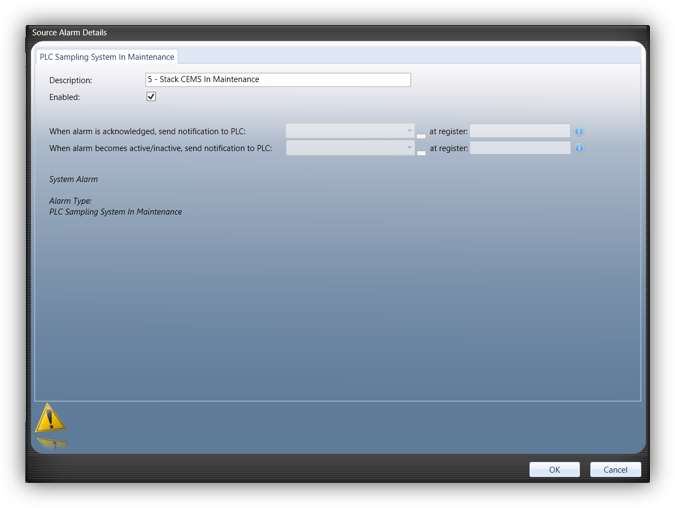
The PLC Sampling System in Maintenance is a new alarm condition that has been added to the system.

These alarm conditions are created for each sampling system when the update occurs.  The alarm condition is also created when a new sampling system is configured.

These alarm conditions are created as a Maintenance alarm.

Once created, the alarm condition can be modified by the user as necessary.

This alarm condition monitors the Sampling System Maintenance bit in the PLC for the corresponding Sampling System number.

Operational Visibility and Monitoring

These enhancements provide users with additional insight into equipment status and system conditions.

13. Cylinder Pressure in Activity Tab in Cylinder Management

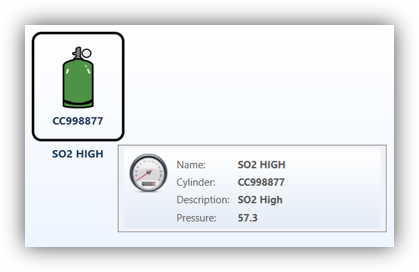
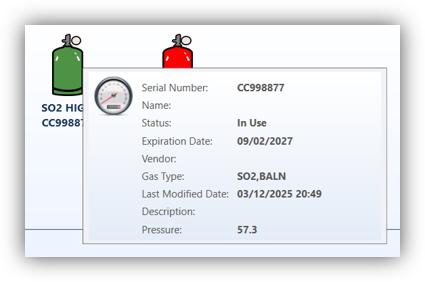
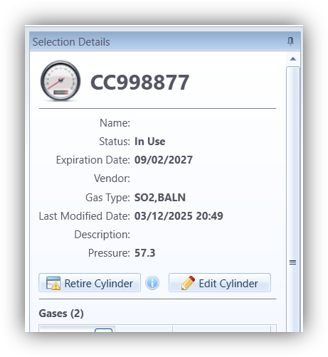
The pressure reading for a cylinder can be displayed in the Activity tab of Cylinder Management.

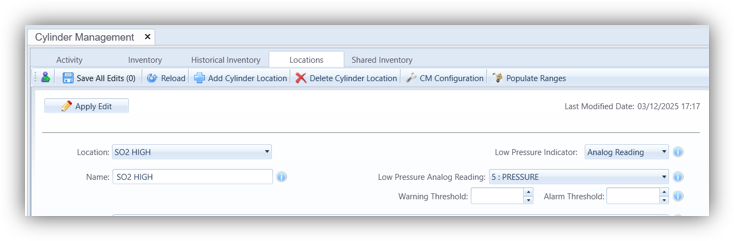
To display the cylinder pressure in the Activity tab, you must configure a data point indicating the pressure value for the cylinder for a Location.  In the Locations tab, select a Location.  The Low Pressure Indicator must be switched to “Analog Reading.”  Once “Analog Reading” has been selected, the Low Pressure Analog Reading option with a list of data points is visible.

Selecting a data point for the Low Pressure Analog Reading will make the Pressure value visible in the Activity tab when a cylinder is in service within the Location.

The data points available in the pick list are averages that are 1 MINUTE BLOCK averages with a Validation of NONE.

The Activity tab retrieves the most recent average from the database to display as the Pressure value for the Cylinder.

The Pressure will be visible when a cylinder is in service in the configuration Location.

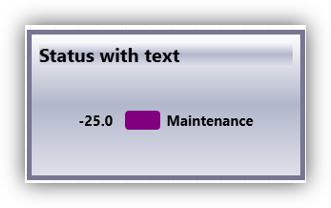
14. Overview Dashboard Real Time Display Widget Display Status

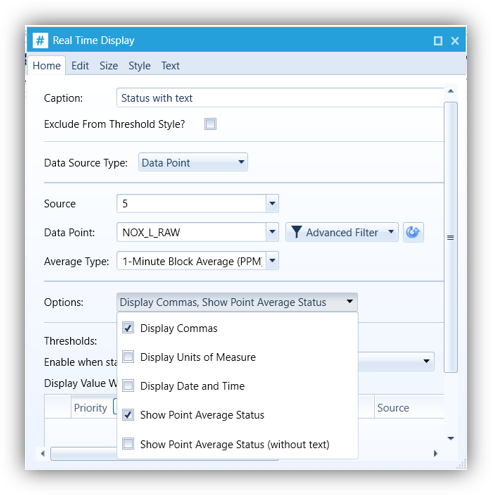
Two new display options have been added to the Real Time Display Widget in the Overview Dashboard.

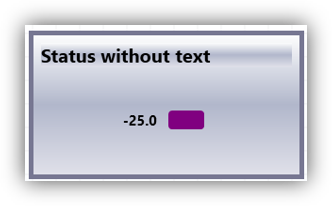
Show Point Average Status and Show Point Average Status (without text) are the new options.

These new options, as well as the existing display options, have been combined into a drop-down list of options to select.

The Show Point Average Status option will display the color-coded Quality of the data point reading.  This option will also include the text of the Quality next to the color-coded indicator.

The Show Point Average Status (without text) option will display only the color-coded Quality of the data point reading.

Security and Reliability Enhancements

Recent releases also include improvements designed to strengthen system security and reliability.

15. CEMLink Services Port Blocking

This release introduces automatic port reservation (port blocking) for all CEMLink Windows services to improve service reliability and prevent startup failures caused by port conflicts.

Background

CEMLink Windows services communicate with each other using WCF over a defined set of TCP ports. These ports are used exclusively for internal communication between services running on the CEMLink DAS Server, and the traffic does not leave the server.

The ports reserved for CEMLink services include:

55101–55103
55201–55202
55301–55302
55401–55402
55501–55502
55601–55602
55701–55702
55801–55802
55901–55902

Issue in Previous Releases

In some scenarios, particularly after a server reboot, Windows could assign one of the required CEMLink ports to another application before the CEMLink services started. When this occurred, the affected CEMLink service would fail to start because its required port was already in use.

This could result in:

  • One or more CEMLink services failing to start
  • Loss of system functionality until manual intervention
  • Additional troubleshooting and service restarts

Enhancement in This Release

This release automatically reserves the required CEMLink service ports at the operating system level. This prevents other applications from using these ports and ensures they remain available for CEMLink services.

Benefits

This enhancement provides the following improvements:

  • Prevents port conflicts with other applications
  • Improves service startup reliability after server reboots
  • Reduces risk of service startup failures
  • Improves overall system stability
  • Eliminates the need for manual port conflict troubleshooting

User Impact

No user action is required. Port reservations are applied automatically during installation or upgrade.

16. Emails Sent with Authorization from OAuth 2.0

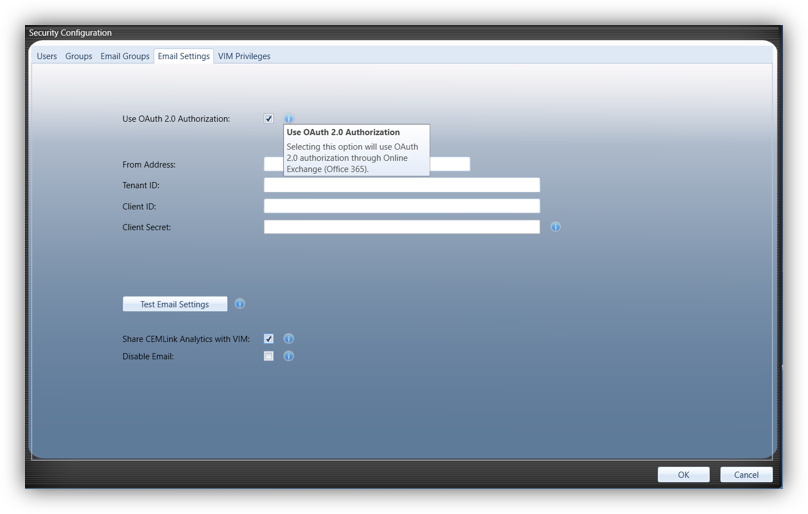
CEMLink now has the capability of using OAuth 2.0 authorization to send emails.

OAuth 2.0, which stands for Open Authorization, is an authorization framework designed to allow applications to securely access resources by other web applications on behalf of a user.

If enabled, CEMLink will use this authorization method to send emails via Online Exchange (Office 365).

To enable OAuth 2.0 authorization within CEMLink, the user must turn this feature on in the Security UI and Email Settings tab.

To send an email via Online Exchange using OAuth 2.0, you must first register your application (Exchange) in the Microsoft Entra admin center and grant it the necessary API permissions to use the modern authentication protocols.  Users will need their IT department to help determine the user, IDs and secret key needed for authorization.

To authorize an application to send emails on behalf of a specific email address (the “From” address) using OAuth 2.0, you must explicitly associate your authorized OAuth client with that specific user account to get the necessary permissions.

An OAuth 2.0 Tenant ID is a unique, alphanumeric identifier (e.g., abc12345-6789-0abc-def1-234567890abc) used primarily in Microsoft Entra ID environments.  It specifies the exact directory, organization, or customer environment your application is authenticating against ensuring users only access authorized resources.

An OAuth 2.0 Client ID is a public identifier issued by an authorization server to identify a specific application.

An OAuth 2.0 client secret is a private “password” known only to your application and the authorization server.  This client secret key is generated in Microsoft Entra and will expire depending on duration set during the key creation process.  When this key expires, a new key will need to be generated and input into the CEMLink settings.

Learn More

The enhancements highlighted in this article represent some of the most significant improvements delivered in recent CEMLink6 releases. Additional updates, implementation guidance, and technical details are available through the CEMLink6 Release Notes.

If you are not currently running the latest version of CEMLink6, contact the VIM Technologies Support Team at support@vimtechnologies.com or call 1-866-484-6435 to discuss available upgrade options and enhancements.

EPA Finalizes New CEDRI Reporting Requirements for Subparts GG, KKKK and KKKKa

On January 15, 2026, EPA published final amendments to Subparts GG, KKKK and KKKKa to 40 CFR Part 60 in the Federal Register.  The effective date for these revisions was January 15, 2026.

Beginning January 15, 2027, or once the report template has been available on the CEDRI website for one year (whichever date is later), the semiannual excess emissions reports must be submitted electronically via CEDRI using the Excel report template.  The Subparts GG, KKKK and KKKKa Excel semiannual report template was posted to the CEDRI website on July 1, 2026 with little fanfare.  The CEDRI Update Log was only recently updated to include the July 1, 2026 release date.  A CEDRI email announcing the release of the new Subparts GG, KKKK and KKKKa reports was submitted to CEDRI users on September 9, 2026.  A copy of the report template is available here.  Each semiannual report is due no later than 60 days after the end of each reporting period.  For the January 1 through June 30, 2027 reporting period, the required semiannual report must be submitted using the Excel report template via CEDRI. 

Additionally, beginning March 16, 2026, Subparts GG, KKKK and KKKKa affected units must also submit the results of performance evaluation tests (including RATAs) or performance tests within 60 days after completing each test.  Test results must be submitted electronically via CEDRI in an XML file format in accordance with the schema listed on EPA’s Electronic Reporting Tool (ERT) website.  For more information, reference §60.334(j) and (k); §60.4375 and §60.4375a to Subparts GG, KKKK and KKKKa, respectively.  For more information, please reach out to our COMPAS team at compas@vimtechnologies.com.

The CEMS Academy Training in Reno Recap

VIM Technologies is proud to announce the successful completion of another sold-out CEMS Academy training event in Reno this month. Our Senior Air Compliance Specialist, Eric Wiley, was among the esteemed instructors who led this comprehensive two-day workshop.

The training, which took place on February 19-20, 2025, brought together environmental professionals from diverse industries, including power, oil and gas, mining, and pulp and paper. This diverse representation contributed to the uniqueness of the training experience, fostering rich discussions and knowledge sharing among participants.

We extend our heartfelt gratitude to all the students who dedicated their valuable time to attend this event. The level of engagement and interaction between students and instructors was truly remarkable, leading to insightful conversations and a deeper understanding of CEMS-related topics.

The CEMS Academy continues to provide a unique opportunity for professionals to learn from a team of experts with over 120 years of combined experience in the field. This hands-on approach to learning has proven to be highly effective in addressing the complex challenges faced by environmental professionals in their day-to-day operations.

Looking ahead, we’re excited to announce that preparations are underway for the next CEMS Academy training event scheduled for late June. Details will be posted on the CEMS Academy website in the coming days. We encourage interested professionals to keep an eye out for this information and register early, as our events tend to sell out quickly.

At VIM Technologies, we remain committed to providing high-quality, practical training that empowers environmental professionals to excel in their roles. We look forward to seeing you at the next CEMS training workshop!

Discover the New LME EDR Tool for ECMPS 2.0 by VIM Technologies

Beginning in the first quarter of 2024, Part 75 sources will be required to report their Electronic Data Reports (EDRs) using the new web-based ECMPS 2.0 platform. This change means that the original ECMPS standalone client tool will no longer be an option for reporting EDRs. This can create some challenges for organizations that need to prepare for this change.

VIM Technologies, a leading provider of innovative solutions for the energy industry, has developed a solution to address this challenge. VIM’s LME EDR Tool for ECMPS 2.0 is an advanced web-based utility tool that provides an efficient and cost-effective solution for creating Part 75 Low Mass Emitter (LME) XML & JSON formatted Electronic Data Reports (EDR).

The upcoming webinar, “LME EDR Tool for ECMPS 2.0,” hosted by VIM on May 24th from 1:00 PM to 1:45 PM ET, will provide an opportunity to learn more about this innovative tool. During the webinar, attendees will see a demonstration of the tool’s features and capabilities and have the chance to ask questions.  REGISTER HERE

The LME EDR Tool for ECMPS 2.0 is designed to help LME sources create and format their EDRs with ease and efficiency while ensuring the accuracy and completeness of their data. The tool is user-friendly and intuitive, allowing LME sources to quickly and easily create EDRs without requiring technical expertise. This feature ensures that users can adapt to the new system quickly.

Platform users can also manually enter operating and long-term fuel flow data or import a CSV file, one that’s been used for years in the current ECMPS client tool. If the existing CSV file import format isn’t suitable for you, or if it takes hours or labor, and resources to convert it, VIM can develop a custom import utility that matches your exact file format needs, thus reducing the need to convert and risk transcription errors.

In addition to being easy to use, the LME EDR Tool for ECMPS 2.0 is also highly secure and dependable. VIM has taken measures to ensure that the tool is safe and that data remains confidential. Users can trust that their data is protected and that they will be in compliance with regulations.

LME EDR Tool for ECMPS 2.0 is web-based, which means that LME sources can access it from anywhere with an internet connection. This feature allows users to work on their EDRs at any time that is convenient for them without needing to be in the same physical location.

Overall, the LME EDR Tool for ECMPS 2.0 is an essential solution for LME sources who want to improve their EDR reporting processes and ensure that their data is accurate, complete, and compliant with regulations. The upcoming webinar provides an excellent opportunity to learn more about this innovative tool and discover how it can benefit your organization.

Try out the LME EDR Tool for ECMPS 2.0 Today! Launch LME EDR Tool

If you’re interested in hearing more about this utility or want a private demonstration, please reach out to a sales representative at sales@vimtechnologies.com.

Digital Transformation: The Fourth Industrial Revolution

The Fourth Industrial Revolution, called 4IR or Industry 4.0, is named for the rapid change in technology, data connectivity, and smart automation that is driving improvement trends throughout the industrial world. Roughly starting in the early 2000s, companies have been implementing changes to improve productivity, efficiencies, and profitability by investing in digital technologies. Machine Learning, Industrial Internet of Things (IIoT), and decision-based software systems are becoming commonplace as costs come down and the need to stay competitive drives buying choices. Regardless of the industry type, companies are making strategic decisions on how best to apply digital technology to their day-to-day operations.

Research shows the primary focus for most digital transformation projects is on process improvements that enhance the customer experience, reduce energy usage, and minimize unplanned downtime. Beyond these main objectives, Industry 4.0 uses technology to help meet Environmental, Social, and Governance (ESG) sustainability by focusing on social development and environmental stewardship. Through these initiatives, companies are addressing not only how they do business now, but the way they will do business in the future. Many ESG digital investment decisions are driven by which aspect of sustainability nets the best results the fastest. Unlike the impact of manufacturing process changes, digitalization investments in ESG are about the long game.

The rewards from these efforts may not hit the bottom line immediately but they do go a long way towards shoring up interest from investors and meeting company sustainability goals. The commitment to a digital strategy gives companies the opportunity to use data connectivity and transparency in conjunction with technology to achieve all of their transformation objectives. All efforts are focused on finding the balance between the digital world while enhancing the human experience, profitability, and ESG sustainability. The urgency to act now and the speed of technological advances opens the potential for implementation pitfalls. Clear thinking and dedication to involving all the company stakeholders are critical before expecting any digital strategy to have the desired impact.Read more »

5 New Years Resolutions to Consider in 2022

It’s the start of a new year, and the VIM Technologies team couldn’t be more excited. Many of us have made our New Year’s Resolutions and are on our way to making changes in the ways we live and work, and how we impact our surroundings. If you haven’t already, it’s time to start thinking about New Year’s Resolutions for yourself and your air compliance initiatives. We’ve pulled together our top five ideas to help improve your air compliance program and quality of work life while you’re at it…

Read more »

Are You Ready to Comply with the New PCWP MACT Requirements?

On June 8, 2020, the U.S. Environmental Protection Agency (EPA) finalized amendments to the 2004 National Emission Standards for Hazardous Air Pollutants (NESHAP) for Plywood and Composite Wood Products (PCWP).

The EPA then published the final residual risk and technology review (RTR) conducted for the PCWP on August 13, 2020.  The EPA determined that PCWP facility air emissions risk is acceptable and that the NESHAP standards continue to provide an ample margin of safety to protect public health. However, the EPA made several revisions and clarifications to the PCWP NESHAP requirements to enhance the rule’s effectiveness by improving compliance and implementation and increasing the efficiency of data submissions.Read more »

Recent Updates in CEDRI — Effective September 2020

EPA’s Compliance and Emissions Data Reporting Interface (CEDRI) has implemented a number of recent changes and enhancements in August and September of 2020. This includes new and updated reports, job aides, and added capabilities. One of the biggest changes includes discontinuing the use of web forms, effective September 24, 2020. We’ve provided a synopsis of the changes below:Read more »